


Active Script Studio
The built-in code editor can be used for creating custom script commands. There is also a visual HTML-form editor designed for integration of user’s forms and commands in the code.
To create a custom user command
Choose Tools > Active Script Studio. This command invokes a dialog where command files can be created, edited, saved and run.
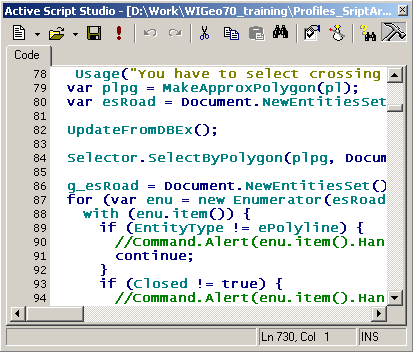
The buttons in the Active Script Studio dialog execute the following functions:
| Button | Function |
| 
 | Clear the pane to create new Java Script, VBScript or HTML-form |
|
| Clear the pane to create new Java Script, VBScript or HTML-form |
|  | Open a script file |
|
| Open a script file |
|  | Save a current script file (with the SHIFT key pressed – save with a different name) |
|
| Save a current script file (with the SHIFT key pressed – save with a different name) |
|  | Run a script |
|
| Run a script |
|  | Undo / Redo |
|
| Undo / Redo |
|  | Cut / Copy / Paste |
|
| Cut / Copy / Paste |
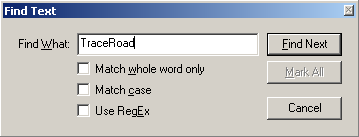
|  | Search for text
 |
|
|
|  | Setting parameters to create Java Script, VBScript or HTML-from |
|
| Setting parameters to create Java Script, VBScript or HTML-from |
|  | Creates a master of the dialog |
|
| Creates a master of the dialog |
|  | Reference for WiseImage Open Architecture |
|
| Reference for WiseImage Open Architecture |
|  | Drag this icon onto any toolbar or menu to create custom user command invocation button.
In the editing mode of the HTML-form the Master ActiveX has three tabs.
The Code tab contains the initial text of HTML-form.
The Form tab – visual form editor.
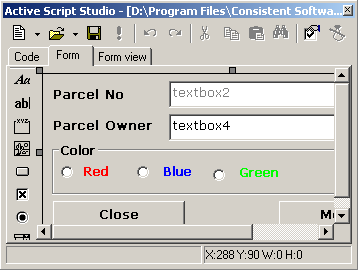
The tools for form creation and editing:
 |
Insert Label |
 |
Insert Text box |
 |
Insert Frame |
 |
Insert Image |
 |
Insert Button |
 |
Insert Checkbox |
 |
Insert radio button |
 |
Insert Dropdown list |
 |
Insert List |
 |
Insert Text area |
 |
Insert File browse |
 |
Insert ActiveX element |
 |
Align Left |
 |
Align Right |
 |
Align Top |
 |
Align Bottom |
 |
Make Same Width |
 |
Make Same Height |
 |
Make Same Size |
The Form view tab – preview of HTML-form
User command (script) Arguments
User custom commands (scripts) can use additional individual parameters (arguments) for different launch sessions. (Such scripts must implement the ScriptSetup function). The script must define a type and a number of arguments. For example, assign different arguments to the buttons that run the same script.
This feature means the same for a script as the Preferences dialog for WiseImage. It is used to specify those script custom settings that will be rarely changed.
To assign arguments values – create a toolbar button for the script and right-click on it. Click the Arguments button in the Tool Setup dialog that appears and then assign arguments values for this button (launch session).
Feedback

Post your comment on this topic.